Modpacks and Add-Ons for Minecraft Java Edition: Complete Guide
Modpacks and Add-Ons are collections of mods, textures shaders and tools bundled together to enhance Minecraft Java Edition. They allow players to quickly customize their game without manually installing individual mods. Using Modpacks saves time, ensures compatibility and gives a ready to play enhanced experience.
Popular Modpacks include Standard Modpacks, Shader Modpacks and Resource Modpacks. These packs are designed for different purposes – some improve visuals, others add new gameplay mechanics and some combine multiple mods for a complete game overhaul. Installing them properly in Zalith Launcher guarantees smooth performance, prevents conflicts, and ensures that all mods work together efficiently.
This guide will cover what these Modpacks are, how to install them, common issues and solutions, FAQs and tips for the best experience.
Popular Modpacks and Add-Ons
Modpacks and add-ons combine multiple mods into a single package, offering new gameplay features, challenges and experiences. They simplify installation and provide a ready-to-play modded environment for players.
Standard Modpacks
Standard Modpacks include multiple mods bundled together for specific themes or gameplay styles. They can include survival enhancements, new mobs, tools, weapons and quality of life improvements.
- Advantages:
- Ready-to-play mod combinations
- Ensures mod compatibility
- Saves installation time
- When to Use:
Use Standard Modpacks for an enhanced Minecraft experience without manually adding each mod.
Shader Modpacks
Shader Modpacks combine visual enhancements such as lighting, shadows, water reflections, and textures. They typically include shaders, OptiFine and sometimes resource packs optimized for visual improvements.
- Advantages:
- Advanced lighting and shadows
- Realistic water and environmental effects
- Compatible with most modded setups
- When to Use:
Use Shader Modpacks when you want immersive and visually stunning gameplay.
Resource Modpacks
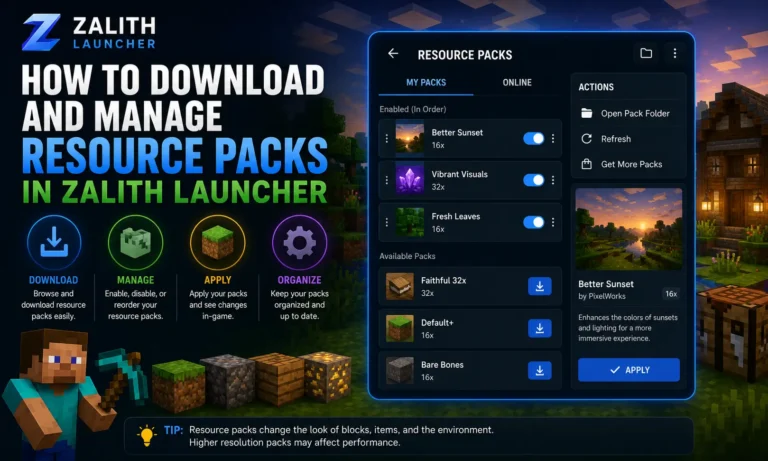
Resource Modpacks focus on textures, sounds, models, and other aesthetic changes. They can be combined with mods or shaders to provide a fully customized look.
- Advantages:
- High-resolution textures
- Unique sound effects and models
- Compatible with mods and shaders
- When to Use:
Use Resource Modpacks to create a visually consistent theme or to complement shader packs for a more immersive experience.
Popular Modpacks and Add-Ons Table
| Modpack / Add-On | Included Mods / Features | Performance / Weight | Notes |
| Standard Modpacks | Bundled mods for themes or gameplay styles | Moderate, depends on mods | Ready-to-play, ensures mod compatibility |
| Shader Modpacks | Shaders, lighting, shadows, optimized textures | Heavy, may reduce FPS | Often requires OptiFine, can combine with resource packs |
| Resource Modpacks | Textures, sounds, models, aesthetic changes | Lightweight to moderate | High-resolution textures, |
How to Install Modpacks in Zalith Launcher
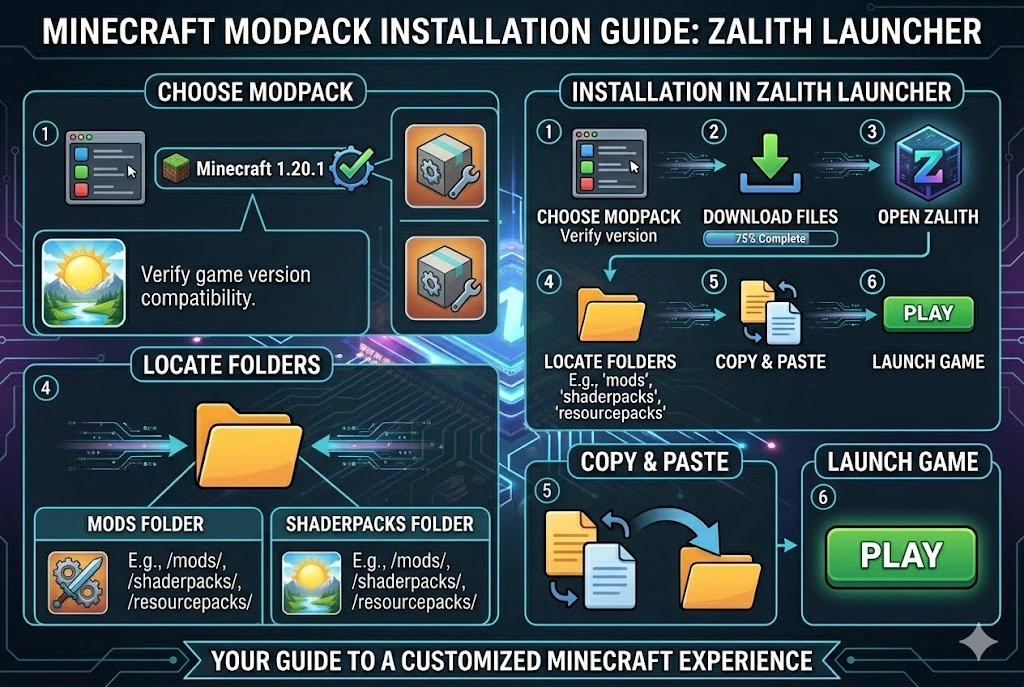
Installing Modpacks properly ensures all mods work together without errors. Follow these steps:
- Choose the Right Modpack: Check the description to ensure compatibility with your Minecraft version.
- Download the Modpack: Use a trusted source or official website to avoid corrupted files.
- Open Zalith Launcher: Select the Minecraft version that matches the modpack requirements.
- Locate the Mods Folder: Open the Minecraft installation directory and find the mods folder. Some Modpacks also include shaderpacks or resourcepacks folders.
- Copy the Modpack Files: Place all modpack files in their respective folders.
- Launch Minecraft: Start the game using the correct loader.
- Test the Modpack: Open the world or start a new game to ensure all mods are functioning properly.
You MaY Love To Read: Mod Loaders for Minecraft Java Edition
Tips:
Common Issues & Solutions
Also Read: Prism Launcher vs Zalith Launcher
FAQs
These helpful points save time and reduce effort.
Conclusion
Modpacks and Add-Ons are essential for players who want a complete and enhanced Minecraft Java Edition experience. Standard Modpacks save time by bundling compatible mods. Shader Modpacks enhance visuals with realistic lighting, shadows and water effects. Resource Modpacks provide unique textures, sounds and models for immersive gameplay.
Installing Modpacks correctly in Zalith Launcher, keeping backups and updating regularly ensures a smooth experience. With proper installation, you can enjoy an optimized, visually stunning, and fully functional modded Minecraft world without facing crashes, conflicts, or missing features.