Zalith Launcher 2 Authentication Failed Error — Complete Fix Guide
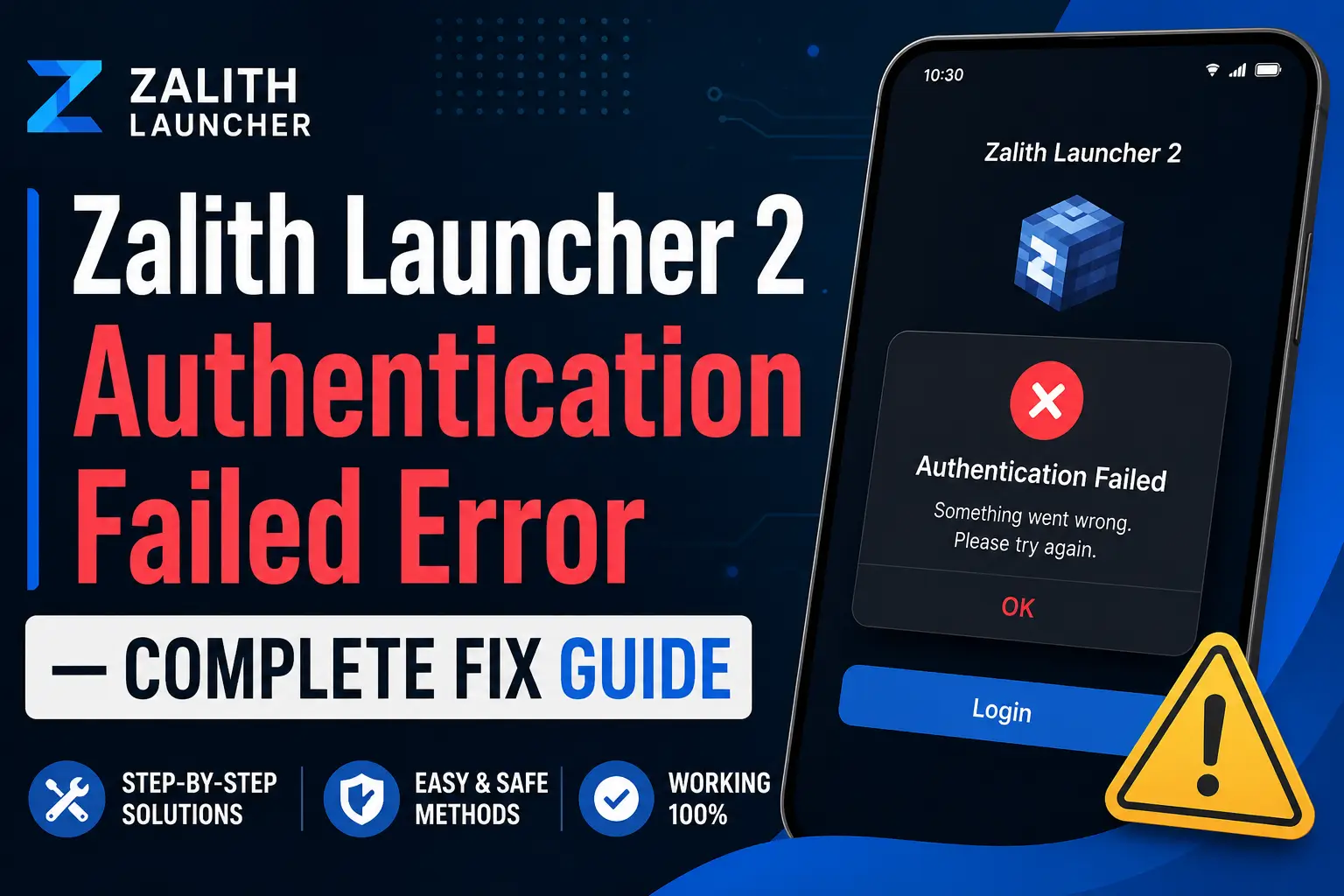
The Authentication Failed error in Zalith Launcher 2 prevents you from launching Minecraft Java Edition because the launcher cannot verify your Microsoft or Minecraft account. This error appears immediately after tapping Play and blocks all game loading until resolved.
This guide covers every known cause — expired login sessions, Microsoft server outages, network blocks, incorrect account type, and launcher cache corruption — and provides the exact fix for each one. Work through the solutions in order from quickest to most thorough.
Types of Authentication Failed Errors
The error message can vary slightly depending on the root cause. Identify which variant you are seeing before applying a fix.
🔒 Login Session Expired
Your Microsoft account token has expired. The launcher cannot refresh it automatically. You must sign out and sign back in manually to generate a fresh token.
⚠️ Microsoft Server Timeout
The launcher contacted Microsoft’s authentication servers but did not receive a response in time. Usually caused by poor network conditions or a temporary Microsoft outage.
🌐 Network / Firewall Block
Your Android device, router, or ISP is blocking connections to Microsoft authentication endpoints. This is common on school or corporate Wi-Fi networks with strict filtering.
👤 Wrong Account Type
You are trying to authenticate with a Microsoft account that does not own Minecraft Java Edition, or you are using a demo/child account that cannot authenticate through the launcher.
Cause & Fix Reference Table
Use this table to quickly match your exact error situation to the recommended solution before reading the full steps below.
| Cause | Affects | Quick Fix | Suggested Action |
| Expired account token | All users | ✅ Yes | Sign out → Sign back in |
| Microsoft server outage | All users | ⏳ Wait | Check status.live.com and wait |
| Launcher cache corrupted | Common after update | ✅ Yes | Clear app cache in Android settings |
| Wrong Microsoft account | New users | ✅ Yes | Switch to account that owns Java Edition |
| Network / firewall block | School / work Wi-Fi | ✅ Yes | Use mobile data or VPN |
| Outdated launcher version | Older installs | ✅ Yes | Update Zalith Launcher to latest |
| Child / family safety account | Under-18 accounts | ❌ No | Use offline mode or adult account |
| Cracked / pirated game copy | Unlicensed copies | ❌ No | Purchase Java Edition license |
Three Ways to Fix — Choose Your Approach
Pick the method that matches how quickly you need to get back into the game.
Quick Re-login Fix
- Sign out of Microsoft account
- Sign back in immediately
- Fixes 70% of auth errors
- No data loss or settings change
- Always try this first
Cache + Network Fix
- Clear app cache in Android settings
- Switch to mobile data
- Check Microsoft server status
- Update launcher to latest version
- Fixes persistent post-update errors
Offline Mode
- Add offline account with any name
- Play local worlds immediately
- No Microsoft account needed
- LAN multiplayer works
- Online servers not accessible
Step-by-Step Solutions
Follow these fixes in order — most users resolve the error at Step 1 or Step 2 without needing to go further.
Step 1 — Sign Out and Sign Back Into Your Microsoft Account
Open Zalith Launcher → tap your Profile icon or Account in the top bar → select Sign Out. Once signed out, tap Add Account, choose Microsoft Account, and complete the login flow in the browser that opens. This regenerates a fresh authentication token and resolves the majority of Authentication Failed errors.
Zalith → Profile → Sign Out → Add Account → Microsoft LoginStep 2 — Clear Zalith Launcher App Cache
Go to Android Settings → Apps → Zalith Launcher → Storage. Tap Clear Cache (do not tap Clear Data unless necessary, as this removes your accounts). Restart the launcher and try signing in again. A corrupted cache from an app update is a common hidden cause of this error.
Settings → Apps → Zalith Launcher → Storage → Clear CacheStep 3 — Check Microsoft Authentication Server Status
Visit status.live.com or check downdetector.com/status/minecraft on your browser. If Microsoft’s Xbox Live or account services are showing an outage, Zalith Launcher cannot authenticate anyone — this is not a problem with your app or account. Wait until the service recovers and try again.
Browser → status.live.com → Check Xbox Live Auth StatusStep 4 — Switch to Mobile Data or Change Network
Some Wi-Fi networks — particularly at schools, universities, and workplaces — block Microsoft authentication endpoints. Turn off Wi-Fi on your device and switch to your mobile data connection. If authentication succeeds on mobile data, the problem is your Wi-Fi network’s firewall. Use a trusted VPN on that network going forward.
Android Quick Settings → Wi-Fi Off → Mobile Data On → RetryStep 5 — Verify Your Account Owns Minecraft Java Edition
Open a browser and sign in at minecraft.net/en-us/profile. Check that your Microsoft account shows Minecraft: Java Edition as a purchased game. If it is not listed, you are logging in with the wrong Microsoft account, or your account holds Bedrock Edition only. Zalith Launcher requires a Java Edition license for online authentication.
minecraft.net/profile → Confirm Java Edition license is listedStep 6 — Update Zalith Launcher to the Latest Version
Outdated versions of Zalith Launcher may use deprecated Microsoft authentication API endpoints that are no longer supported. Download the latest APK from the official Zalith Launcher website or GitHub releases page. Install it over your existing version — your accounts and settings are preserved during an update install.
Official Site → Download Latest APK → Install UpdateStep 7 — Use Offline Mode as a Temporary Workaround
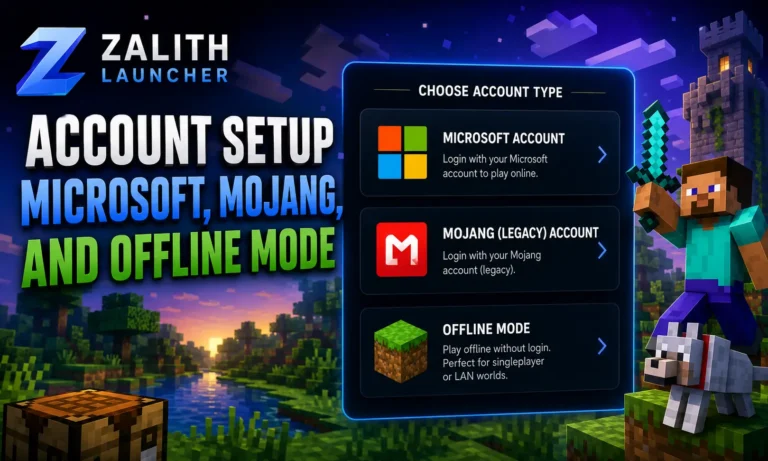
If you need to play immediately while troubleshooting, Zalith Launcher supports Offline / Local mode. In the account settings, add an offline account with any username. You can play on local worlds and LAN servers without Microsoft authentication. Note that online multiplayer servers that require an authenticated account will not be accessible in offline mode.
Add Account → Offline Account → Enter Username → Play LocalAlso Read: Zalith Launcher Officially Released —The Wait Is Over!
FAQs
Common questions about the Authentication Failed error in Zalith Launcher answered simply.
Common questions about the Authentication Failed error in Zalith Launcher answered simply.
Conclusion
The Authentication Failed error in Zalith Launcher 2 is almost always caused by one of three things: an expired Microsoft account token, a temporary Microsoft server issue, or a network block on your device. In the vast majority of cases, simply signing out and signing back into your Microsoft account inside the launcher resolves the error in under two minutes.
If the quick re-login fix does not work, clearing the app cache, switching to mobile data, and updating to the latest launcher version will solve the remaining cases. For anyone who cannot resolve authentication immediately, the offline mode lets you continue playing single-player worlds without any Microsoft account at all. Once the issue is resolved, your full online access — including multiplayer servers, skins, and achievements — returns instantly without any additional setup.