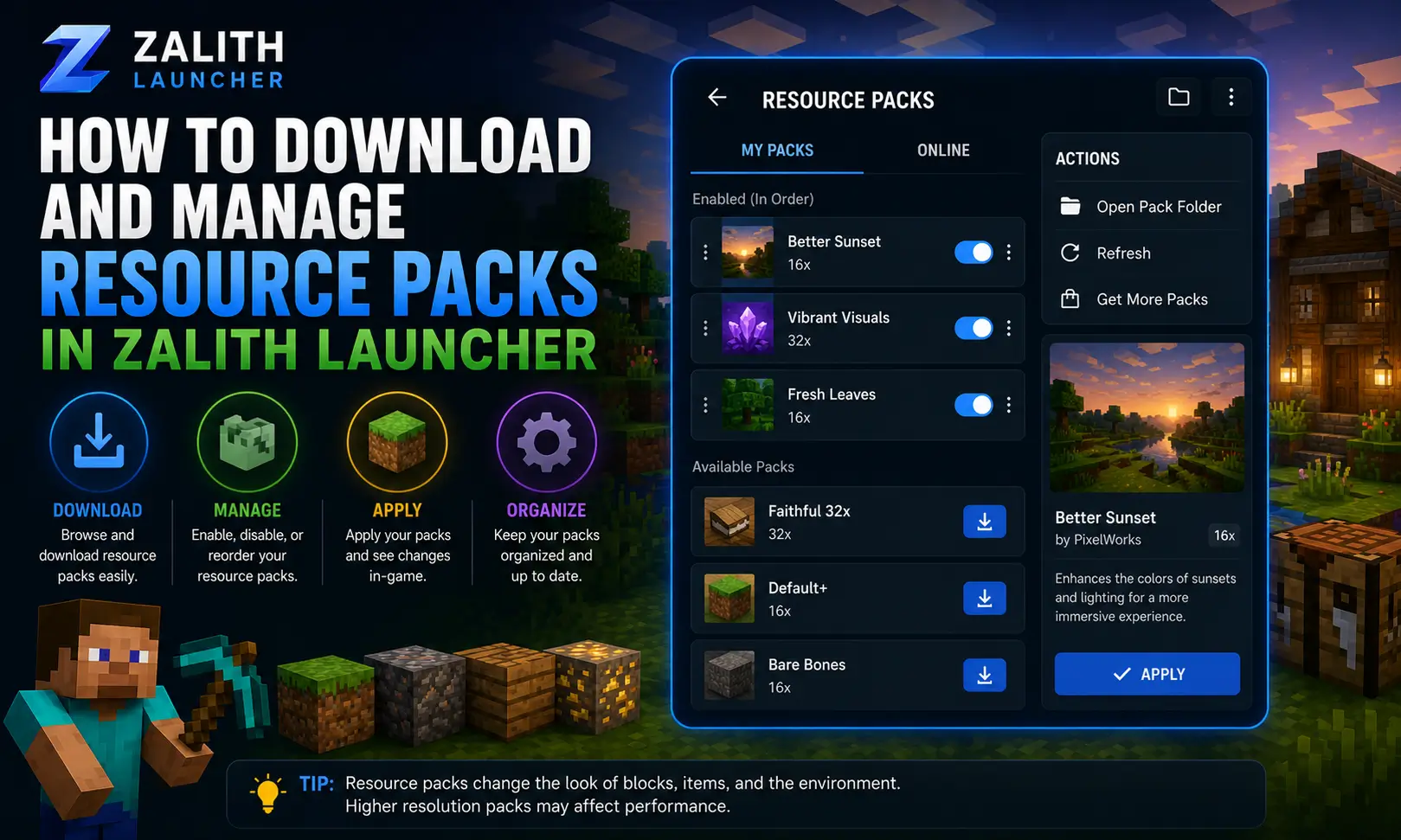
How to Download and Manage Resource Packs in Zalith Launcher
Resource packs completely transform how Minecraft Java Edition looks and sounds on your Android device. From ultra-realistic textures to themed pixel-art overhauls, installing the right resource pack through Zalith Launcher takes just a few minutes — and you can switch between multiple packs without reinstalling anything.
This complete guide covers every method to download, install, activate, and manage resource packs in Zalith Launcher v2.1.2 and later — including where to find the best free packs, how to fix common loading errors, and how to run high-resolution packs without performance issues on Android.
What Are Resource Packs and Why Use Them?
Resource packs (also called texture packs) replace the default Minecraft textures, sounds, fonts, and language files with custom alternatives. They do not modify game code — only visual and audio assets — making them safe, reversible, and compatible with almost every Minecraft version.
Texture Packs
Replace block, item, mob, and UI textures. Available in resolutions from 16x (default) up to 512x for ultra-realistic visuals. Higher resolution = more RAM needed. Zalith Launcher supports all standard .zip format resource packs directly without any conversion.

Sound & Music Packs
Replace ambient sounds, mob noises, music discs, and UI sounds. Popular options include ambient nature soundscapes, orchestral music replacements, and ASMR mining sounds. Sound packs use the same .zip format and install identically to texture packs in Zalith Launcher.

Font & GUI Packs
Replace the in-game HUD, inventory screens, fonts, and menu backgrounds. Particularly useful on small Android screens where the default Minecraft GUI can feel cramped. GUI-optimized packs scale elements for mobile-sized displays making navigation significantly cleaner.
Resource Pack Compatibility Table
Use this table to understand which resource pack resolutions and types are compatible with different Minecraft versions in Zalith Launcher before downloading.
| Pack Resolution | Pack Type | MC 1.8–1.12 | MC 1.13–1.19 | MC 1.20+ | RAM Required |
| 16x (Default) | Texture | ✅ Yes | ✅ Yes | ✅ Yes | ~512 MB |
| 32x | Texture | ✅ Yes | ✅ Yes | ✅ Yes | ~768 MB |
| 64x | Texture | ✅ Yes | ✅ Yes | ✅ Yes | ~1 GB |
| 128x | Texture | ⚠️ Laggy | ✅ Yes | ✅ Yes | ~2 GB |
| 256x | Texture | ❌ Not Recommended | ⚠️ Mid-Range Only | ✅ High-End Only | ~3 GB+ |
| 512x | Texture | ❌ No | ❌ Not Recommended | ⚠️ Flagship Only | ~4 GB+ |
| Any Resolution | Sound/Music | ✅ Yes | ✅ Yes | ✅ Yes | Minimal |
| Any Resolution | Font/GUI | ✅ Yes | ✅ Yes | ✅ Yes | Minimal |
Where to Download Resource Packs for Zalith Launcher
Always download resource packs as .zip files — do not extract them. Zalith Launcher reads the .zip directly. Use only trusted sources to avoid malware in pack downloads.
Modrinth
- Largest open-source modding platform
- All packs scanned for malware automatically
- Filter by Minecraft version, resolution, category
- Direct .zip download — no ads or redirects
- Visit: modrinth.com/resourcepacks
CurseForge
- Massive library with millions of downloads
- Requires free account for some downloads
- Filter by Java Edition and resolution
- Use the “Files” tab to download the .zip directly
- Visit: curseforge.com/minecraft/texture-packs
Planet Minecraft
- Community-driven with user ratings and reviews
- Great for themed and aesthetic packs
- Always check the Minecraft version tag before downloading
- Some packs link externally — verify the destination URL
- Visit: planetminecraft.com/texture-packs
Best Resource Packs for Zalith Launcher (2024–2025)
These packs are confirmed to work with Zalith Launcher on Android and are among the most downloaded on Modrinth and CurseForge. All are available as Java Edition .zip files.
Faithful 32x / 64x
The most popular resource pack ever made. Doubles or quadruples the texture resolution while keeping the vanilla Minecraft art style. Virtually no performance impact at 32x. Perfect first pack for Zalith Launcher beginners.
Jolicraft
A beloved hand-painted pack with warm, storybook visuals. Lightweight at 16x so it runs flawlessly even on mid-range Android devices running Zalith Launcher. Excellent for survival worlds.
Mizuno’s 16 Craft
Anime-inspired Japanese aesthetic with clean, soft visuals. Extremely popular in the community. Runs perfectly on Zalith Launcher across all Android device tiers. Great GUI improvements included.
Sphax PureBDcraft
Cartoon-style comic book aesthetic at multiple resolutions. Start with 32x on Android for smooth performance. One of the longest-running packs in Minecraft history with active updates.
Bare Bones
Minimalist flat-color textures that reduce rendering complexity. Actively improves FPS on older Android devices. Ideal for players who want better performance without vanilla visuals. Pairs well with shader mods.
Stay True
Enhances the vanilla look with organic block variation, natural-looking grass, and improved lighting references. Stays true to Mojang’s original art direction while adding real depth. Popular among survival players on Zalith Launcher.
How to Install a Resource Pack in Zalith Launcher
Zalith Launcher stores resource packs inside a dedicated folder on your Android device. You do not install packs inside the launcher app itself — instead you place the .zip file in the correct directory, then activate it from within the game’s Options menu. Follow the complete method below.
Before You Start — Checklist
Step-by-Step: Installing a Resource Pack
- Open your file manager app on Android and navigate to Internal Storage → Android → data → com.zalith.launcher → files → games → minecraft → resourcepacks. This is the folder Zalith Launcher reads.
- If the resourcepacks folder does not exist yet, create it manually. The exact path is:
Android/data/com.zalith.launcher/files/games/minecraft/resourcepacks/ - Copy or move your downloaded .zip resource pack file into this folder. Keep it as a .zip — do not extract. The file should appear directly inside the resourcepacks folder, not in a subfolder.
- Open Zalith Launcher, select your Minecraft version, and tap Play to launch the game.
- Once in-game, open the Options menu (press Esc or the Options button on your controller/touch layout).
- Navigate to Options → Resource Packs. Your installed pack will appear in the left column under Available Resource Packs.
- Click the arrow button next to the pack name to move it to the Selected Resource Packs column on the right. Move it to the top of the list if you want it to take priority over other packs.
- Click Done. The game will reload assets and apply the resource pack automatically. If the pack loaded successfully you will see the new textures immediately in-game.
Resource Pack Folder Paths in Zalith Launcher
The resource packs directory location can vary slightly depending on your Android version and device manufacturer. Use the path that works for your device below.
Standard Android Path
Works on most Android 11 and below devices. Access via Files by Google or any standard file manager. This is the main path confirmed in Zalith Launcher documentation.
Android 12+ Restricted Storage
On some Android 12+ devices, the data/com.zalith path may be access-restricted. Zalith Launcher also reads from this secondary path in newer builds. If the primary path is inaccessible, use this one.
Transferring from PC via USB
Connect your Android via USB cable to a Windows PC, choose File Transfer mode, and navigate to this path in File Explorer. Drag and drop your .zip packs directly — much faster for large pack files like 256x.
How to Manage Multiple Resource Packs in Zalith Launcher
Zalith Launcher supports multiple active resource packs simultaneously. Packs are layered — a pack at the top of the selected list takes priority over packs below it. This lets you mix and match packs: for example, a sound pack on top with a texture pack underneath.
Install Multiple Pack Files
Place multiple .zip files in the resourcepacks folder. Each pack will appear as a separate entry in the Available Resource Packs list when you open Options inside Minecraft. There is no limit to how many packs you can have installed — but only activated packs affect game performance.
Activate and Reorder Packs
In the Resource Packs menu (Options → Resource Packs), move multiple packs to the right “Selected” column. Use the up/down arrow buttons to reorder them. The pack at the top of the selected list has highest priority — its textures override all packs below it for any overlapping files.
Understand Pack Priority and Layering
When two packs both contain a texture for the same block (e.g. stone.png), the pack higher in the list wins. This lets you layer a small “fix pack” or addon on top of a main pack without replacing the entire main pack. Sound packs and texture packs can coexist without any conflicts since they target different asset types.
Switch Packs Without Restarting
You can change active resource packs without closing Minecraft. Open the Options menu, go to Resource Packs, reorder or swap your selection, and click Done. The game will reload assets in a few seconds. This makes it easy to compare how different packs look without relaunching through Zalith Launcher each time.
Remove Packs You No Longer Use
Installed packs that are not activated in the selected column have zero performance impact. However, to free up storage space, open your file manager, navigate to the resourcepacks folder, and delete the .zip files for packs you no longer want. There is no uninstall button inside the launcher — deletion is done via the file manager only.
Pack Priority Reference — How Layering Works
| Stack Position | Priority | Use Case | Example |
|---|---|---|---|
| Top of Selected List | Highest — overrides all below | Main texture overhaul | Faithful 64x |
| Second in Selected List | High — fills in gaps from pack above | Sound replacement | Ambience Sound Pack |
| Third in Selected List | Medium — supplements above packs | GUI / HUD only pack | Mobile GUI Pack |
| Bottom of Selected List | Lowest — overridden by all above | Fallback defaults | Vanilla Default |
Resource Pack Performance Optimization for Android
High-resolution resource packs demand significantly more RAM and GPU memory than default textures. On Android, this can cause stuttering, texture pop-in, or even crashes if your device does not have enough available memory. Use the optimization tips below to get the best experience for your specific device.
Performance Do’s
Performance Don’ts
Common Resource Pack Problems and Fixes
If your resource pack is not loading, showing missing textures, or crashing the game in Zalith Launcher, check the solutions below before re-downloading.
Resource Pack Not Appearing in the Available List
The .zip file is either in the wrong folder or was placed inside a subfolder inside resourcepacks. The pack must sit directly inside the resourcepacks folder, not in a sub-directory (e.g. resourcepacks/PackName.zip is correct — resourcepacks/PackFolder/PackName.zip will not show). Also verify the file extension is .zip, not .rar or .7z.
Purple and Black Missing Texture Squares After Activating Pack
This means the pack does not have textures for some blocks — usually because the pack was created for a different Minecraft version than you are running. Download a version-specific build of the pack from Modrinth or CurseForge (filter by your exact MC version). For vanilla-missing textures, adding Faithful as a second pack below your main pack fills in gaps with higher-res defaults.
Game Crashes When Loading Resource Pack
This almost always means the pack resolution is too high for your device’s available RAM. Try a lower resolution version of the same pack (most popular packs offer 32x, 64x, and 128x editions on the same download page). Also increase Java heap allocation in Zalith Launcher settings — navigate to Settings → Java → Java Arguments and add -Xmx2G or higher for high-res packs.
Pack Shows as Incompatible Warning in Resource Packs Menu
Minecraft displays an incompatibility warning when a pack’s declared pack_format number does not match the current game version. This is a warning, not an error — you can still activate the pack by clicking the warning triangle icon. Most packs will still work fine despite this warning unless the version gap is very large (e.g. a 1.8 pack on 1.20).
Resource Pack Reverts to Default After Restarting Minecraft
Zalith Launcher saves resource pack selections per-profile. If you have multiple Minecraft versions installed, your pack selection for one version does not carry over to another. Make sure you are launching the correct version from the launcher and that your options.txt file in the .minecraft directory has the resourcePacks entry saved correctly. This file is located at: Android/data/com.zalith.launcher/files/games/minecraft/options.txt
Textures Load But Look Blurry
Blurry textures after loading a pack means Minecraft’s mipmap setting is overriding texture sharpness. Open Options → Video Settings → Mipmap Levels and set it to 0 or 1. Alternatively, if you intended sharp pixel-art textures, disable antialiasing settings in Video Settings. For 16x packs on high-DPI screens, this is expected behavior — switch to a 32x version of the same pack for crisper visuals.
FAQs
Common resource pack questions for Zalith Launcher answered simply.
Conclusion
Installing and managing resource packs in Zalith Launcher follows the same straightforward process as Java Edition on PC — download a .zip from a trusted source like Modrinth or CurseForge, place it in the resourcepacks directory, and activate it from the in-game Options menu. The key differences on Android are folder access (especially on Android 12+ devices) and memory management for higher-resolution packs.
For the best starting experience, install Faithful 32x as your first pack — it doubles texture quality with zero performance cost and is compatible with every Minecraft version supported by Zalith Launcher. Once you are comfortable with pack management, layering a sound pack on top or adding a GUI pack optimized for mobile screens will complete the transformation from a basic Java Edition session to a polished, console-quality experience on your Android device.
Also Read: How to Connect a Controller to Zalith Launcher (Bluetooth & USB)