Version Isolation in Zalith Launcher — What It Is and How to Use It
Version Isolation is one of the most powerful — and most overlooked — features in Zalith Launcher. If you have ever had mods from one Minecraft version break another, or wondered why your saves and resource packs get mixed up across different profiles, Version Isolation is the solution you need.
This complete guide explains exactly what Version Isolation is, how it works at a file level, when you should enable it, how to turn it on in Zalith Launcher 2, and how it compares to running without it. Whether you manage two versions or twenty, this guide will help you keep your setups clean, conflict-free and fully organized.
What Is Version Isolation?
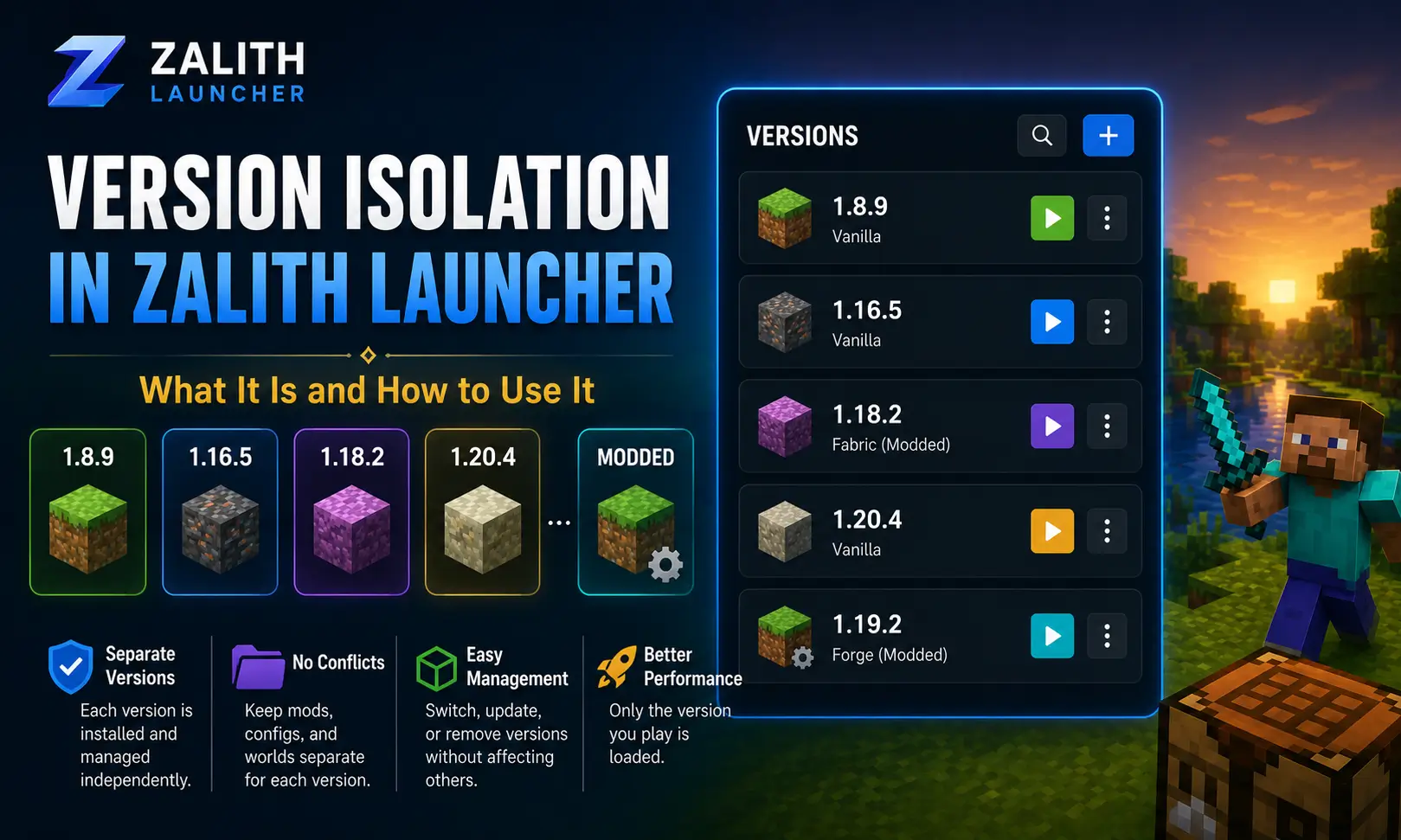
Version Isolation is a game data management system built into Zalith Launcher 2. When enabled, it instructs Minecraft to store every version’s data — mods, saves, resource packs, shaders, configs, and logs — inside that version’s own dedicated folder, completely separate from every other version.
Without Version Isolation, all versions on your device share a single .minecraft folder. That means mods installed for one version can conflict with another, saves get mixed together, and resource packs apply globally whether you want them to or not. Version Isolation eliminates all of these problems by giving each version its own private workspace.
🔒 Core Concept
Version Isolation tells Zalith Launcher to treat each version’s folder as its own independent .minecraft directory. Every version gets its own mods, saves, resource packs, configs, logs, and shaders — completely separated from all other versions on your device.
Why Version Isolation Matters — The Problem It Solves
To understand why Version Isolation is so useful, you first need to understand what happens without it. Without Version Isolation, Zalith Launcher stores game data for all versions in a single shared .minecraft folder. This causes several real problems that players run into regularly.
❌ Without Version Isolation
- All mods share one folder — Fabric 1.21 mods mix with Forge 1.20 mods
- Mod conflicts and crashes happen constantly when switching versions
- Saves from all versions pile up in a single folder
- Resource packs apply globally across versions you don’t want them on
- Config files from different modloaders overwrite each other
- Hard to identify which save belongs to which version
- A single bad mod can break your entire Minecraft setup
✓ With Version Isolation Enabled
- Each version has its own private mods folder — zero cross-contamination
- Switching between Fabric, Forge, Quilt or NeoForge never causes conflicts
- Saves are stored inside the version folder — always organized
- Resource packs are per-version — use different packs on different versions
- Configs stay inside the version that created them
- One version can crash without affecting any other version
- Launcher manages each version independently with full clarity
How Version Isolation Works — File Structure Explained
Version Isolation works by changing where Minecraft is told to write its data. The launcher passes each version’s own folder to Minecraft as its root directory instead of the shared .minecraft folder. The difference in the resulting file structure is dramatic and makes version management significantly simpler.
📁 File Structure — Version Isolation OFF (Shared Folder)
├── .fabric ← all versions share this
├── assets\
├── config\ ← all versions share this
├── libraries\
├── logs\ ← all versions log here
├── mods\ ← ALL mods from ALL versions
│ └── fabric-api.jar
│ └── sodium-1.20.jar ← causes crash on 1.21
├── resourcepacks\ ← shared across all versions
│ └── FreshAnimations.zip
├── saves\ ← all worlds mixed together
│ └── My World
├── versions\
│ ├── 1.21.8-Fabric 0.17.2\
│ │ └── 1.21.8-Fabric.jar
│ └── 1.20.1-Forge 47.3.0\
│ └── 1.20.1-Forge.jar
└── options.txt ← one settings file for all
mods\ folder. Loading either version will attempt to load all mods, causing instant crashes, errors, and data corruption.📁 File Structure — Version Isolation ON (Per-Version Folder)
├── assets\ ← shared (read-only game assets)
├── libraries\ ← shared (Java libraries)
└── versions\
├── 1.21.8-Fabric 0.17.2\ ← private root for this version
│ ├── .fabric
│ ├── config\
│ ├── logs\
│ ├── mods\ ← only Fabric 1.21 mods
│ │ └── fabric-api.jar
│ ├── resourcepacks\ ← only packs for 1.21
│ ├── saves\ ← only 1.21 worlds
│ └── options.txt ← settings just for 1.21
└── 1.20.1-Forge 47.3.0\ ← private root for this version
├── mods\ ← only Forge 1.20 mods
├── saves\ ← only 1.20 worlds
└── options.txt
Version Isolation — Quick Comparison Table
Use this table to quickly understand the difference between having Version Isolation on or off. Every category below is affected by this one setting.
| Category | Isolation OFF | Isolation ON |
| Mods Folder | Single shared folder for all versions | Each version has its own mods folder |
| Saves / Worlds | All worlds mixed in one saves folder | Worlds stored inside the version folder |
| Resource Packs | Shared — apply to every version | Per-version — fully independent |
| Shaders | Shared shaderpacks folder | Shaders stored per version |
| Config Files | One config folder for all versions | Config inside each version folder |
| Options / Settings | One options.txt file globally | Separate options.txt per version |
| Mod Conflicts | ⚠ High risk of cross-version conflicts | ✓ Zero cross-version conflicts |
| Crash Isolation | One crash can affect all versions | Crashes stay within the affected version |
| Disk Usage | Lower (shared files) | Slightly higher (per-version files) |
| Best For | Single version, simple setups | Multi-version, modded, advanced users |
| Launcher Compatibility | Basic | Matches PCL2, HMCL, FCL standard |
When Should You Use Version Isolation?
Version Isolation is not mandatory for every player, but it is strongly recommended for most. Here are the situations where it makes the biggest difference.
Multiple Modloaders
Running both Fabric and Forge (or Quilt and NeoForge) on the same device? Version Isolation is essential to prevent their mods from colliding.
Multiple Minecraft Versions
Playing 1.20.1 and 1.21.x at the same time? Keep each version’s worlds, mods, and settings completely separate.
Large Modpacks
Modpacks come with specific mod sets. Isolation ensures a modpack’s 200+ mods never interfere with your vanilla or lightly-modded versions.
Testing New Mods
Create an isolated test version to try new mods safely. If it breaks, delete that version — your main setup stays untouched.
Shared Device
Multiple people use the same Android device? Each version can store its own worlds and settings so playthroughs never mix.
Content Creation
YouTubers and streamers need clean, reproducible setups. Isolation keeps each recording profile independent and crash-proof.
How to Enable Version Isolation in Zalith Launcher 2 — Step by Step
Version Isolation is only available in Zalith Launcher 2 (v2.1.0 and later). Follow these steps to enable it. You can enable it globally for all versions or on a per-version basis.
🌎 Method A — Enable Globally (Recommended)
Launch the app on your Android device and reach the main screen.
Tap the Settings icon (gear icon) from the main navigation menu.
Inside Settings, tap on Game or Version Management — the section that controls how versions are stored and managed.
Scroll down to find the Version Isolation option. It will show a toggle switch.
Tap the toggle to enable Version Isolation. All new and existing versions will now use isolated folders as their root data directory.
Go to your Version Manager. Each version tile should now show a folder icon or indicator confirming isolation is active for that version.
.minecraft folder, they will not automatically move into each version’s isolated folder. You will need to manually copy them to the correct version folder after enabling isolation. Saves and mods created after enabling will be stored correctly from that point forward.⚙️ Method B — Enable Per Version (Advanced)
If you want to isolate only specific versions and leave others shared:
- Open Zalith Launcher 2 and go to Version Manager
- Long-press or tap the three-dot menu on the specific version you want to isolate
- Select Version Settings or Configure Version
- Find the Version Isolation toggle specific to this version
- Enable it and confirm — only this version will use an isolated folder
Managing Files After Enabling Version Isolation
Once Version Isolation is active, all new mods, saves, resource packs, and shaders you add will automatically go into the correct version folder. Here is how to manage specific data types after enabling isolation.
🧩 Adding Mods
Place mods inside versions/[VersionName]/mods/. Use Zalith Launcher’s built-in file manager or connect via a file explorer app on Android to navigate there. Only mods in this folder will load for that version.
🌐 Moving Existing Saves
Copy world folders from .minecraft/saves/ into versions/[VersionName]/saves/. The saves will now appear in that version’s world list. Do not delete the originals until you confirm the copy worked.
🎨 Resource Packs
Place resource pack ZIPs into versions/[VersionName]/resourcepacks/. Each version now loads only its own resource packs. You can use different texture packs on different versions simultaneously.
🌟 Shaders
Copy shaderpacks into versions/[VersionName]/shaderpacks/. Each modded version with a shader mod (Iris, OptiFine) will only see the shaders you placed in its own folder.
Version Isolation vs Other Minecraft Launchers — Compatibility Guide
Zalith Launcher 2’s Version Isolation system uses the same standard as other major Minecraft launchers. This means if you have used Version Isolation on a PC launcher before, you already understand how this works. The table below shows compatibility across launchers.
| Launcher | Platform | Version Isolation | Compatible with Zalith Isolation |
| Zalith Launcher 2 | Android | ✓ Supported (Zalith 2 only) | — |
| PCL2 | Windows | ✓ Supported | ✓ Same file structure |
| HMCL | Windows / Mac / Linux | ✓ Supported | ✓ Same file structure |
| FoldCraftLauncher (FCL) | Android | ✓ Supported | ✓ Same file structure |
| PojavLauncher | Android / iOS | ✗ Not natively supported | ✗ Different structure |
| Official Minecraft Launcher | Windows | Partial (per-profile) | Partial |
Common Version Isolation Issues and How to Fix Them
These are the most frequently asked questions and problems players encounter when first setting up Version Isolation in Zalith Launcher 2.
My Saves Disappeared After Enabling Version Isolation
Your saves were not deleted — they are still in the old shared .minecraft/saves/ folder. After enabling isolation, each version looks for saves inside its own folder. Use the file manager to copy your world folders from .minecraft/saves/ into .minecraft/versions/[YourVersion]/saves/ and they will reappear immediately.
Mods Are Not Loading After Enabling Version Isolation
Your mods are still in the old shared .minecraft/mods/ folder. After enabling isolation, the launcher only reads mods from .minecraft/versions/[YourVersion]/mods/. Move or copy your mod files into that per-version mods folder and relaunch the game.
Resource Packs Are Not Showing in Game
This is the same cause as above. With isolation enabled, Minecraft looks for resource packs inside the version folder at versions/[YourVersion]/resourcepacks/. Copy your resource pack ZIPs there and they will appear in the in-game resource pack menu.
I Do Not See a Version Isolation Option
Version Isolation is only available in Zalith Launcher 2 (version 2.1.0 or later). It is not available in Zalith Launcher 1. Download the latest version of Zalith Launcher 2 from the official GitHub page or the official website to access this feature.
Game Options Reset After Enabling Isolation
The original options.txt was in the shared .minecraft folder. With isolation, each version now uses its own options.txt inside its folder. The first launch after enabling isolation will generate a fresh options file. Simply re-apply your preferred settings in-game and they will be saved correctly going forward.
FAQs
Everything you need to know about Version Isolation in Zalith Launcher, answered clearly.
Conclusion
Version Isolation is one of the most important features in Zalith Launcher 2 for any player who manages more than one Minecraft version, uses mods, or wants a clean and conflict-free setup. By giving each version its own private data folder — covering mods, saves, resource packs, shaders, configs, and logs — it eliminates the most common causes of crashes and file confusion in multi-version setups.
The feature works identically to Version Isolation in PCL2, HMCL, and FoldCraftLauncher, so it follows a well-proven standard. Enabling it takes just a few taps inside Zalith Launcher 2’s settings, and the organizational benefits are immediate. If you are running Fabric alongside Forge, jumping between Minecraft versions, or building a modpack, enabling Version Isolation in Zalith Launcher is the single best thing you can do for the long-term stability and cleanliness of your Android Minecraft setup.
Also Read: Zalith Launcher Ultimate Setup for Minicraft