Zalith Launcher for Multiplayer — How to Join Servers & Play with Friends
Zalith Launcher for Multiplayer — How to Join Servers & Play with Friends
Zalith Launcher is not just for single-player. It fully supports online multiplayer, so you can join public Minecraft Java servers or play with friends over LAN, exactly like on PC. Whether you want to battle on Hypixel or host a private world, Zalith Launcher makes it possible right from your Android device.
Zalith Launcher APK is an open-source Android app built on top of PojavLauncher. It brings the full Minecraft Java Edition multiplayer experience to mobile. This guide covers everything — from joining your first server to fixing common connection errors so you and your friends can play together without any hassle.
Key Multiplayer Features of Zalith Launcher
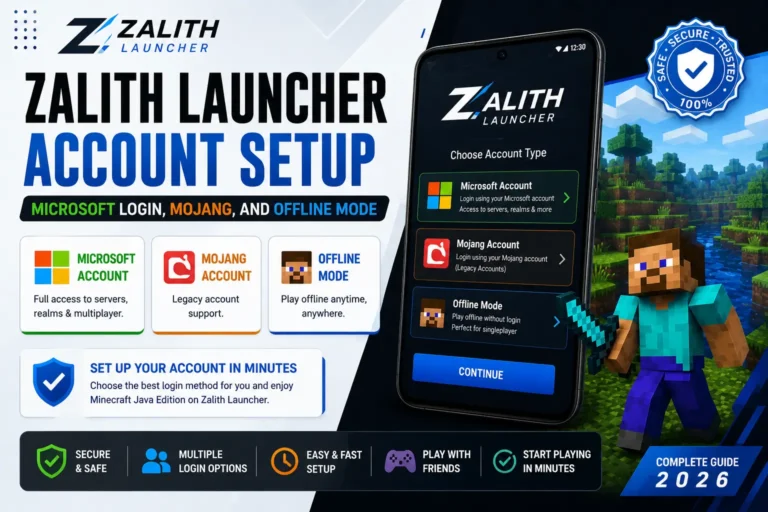
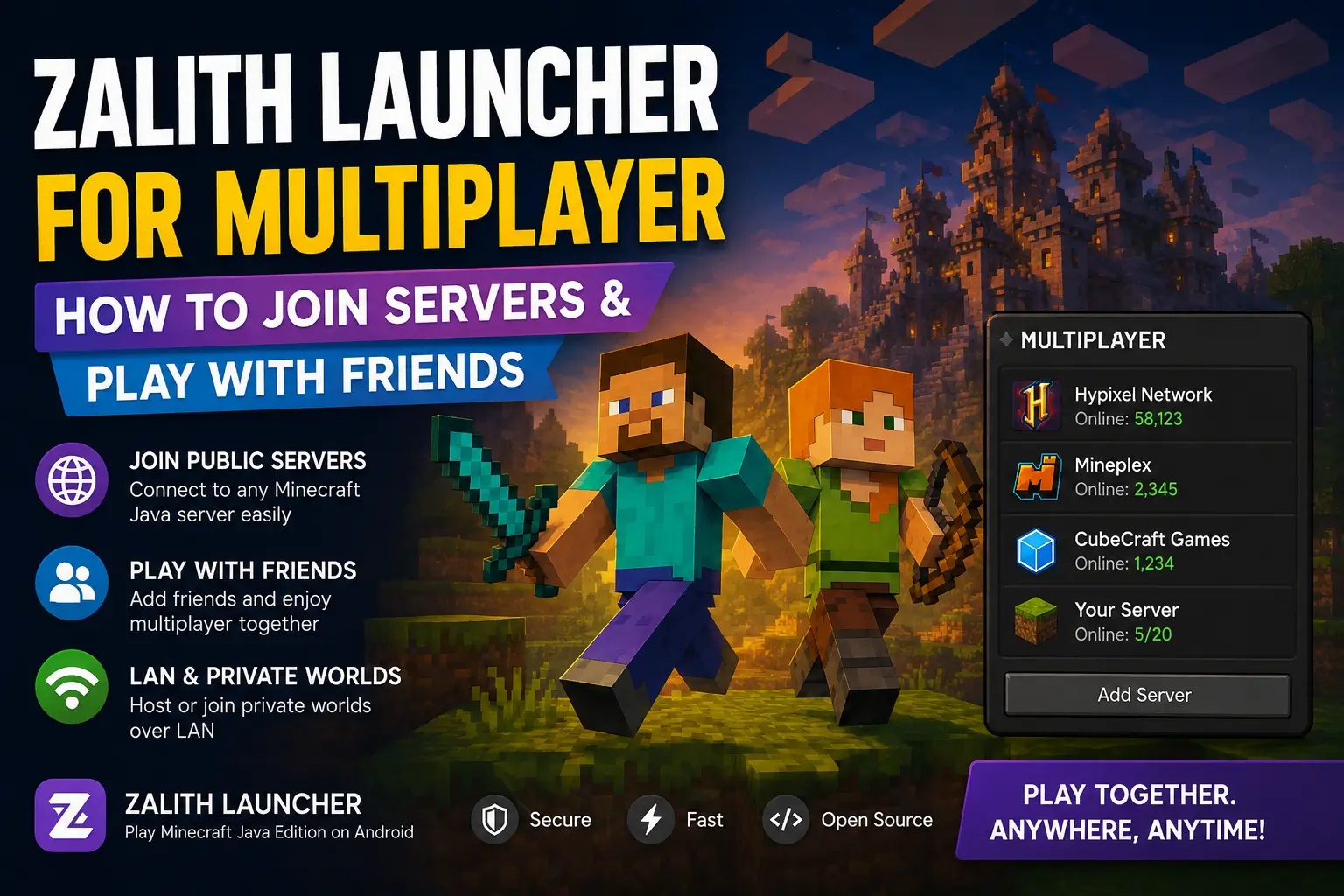
Zalith Launcher is designed to give Android players the full Minecraft Java Edition multiplayer experience. It supports joining public servers, playing over LAN with nearby friends and connecting to private servers using a server IP address. The launcher works with both Microsoft and Mojang accounts so players can access premium servers like Hypixel without any issues.
It also includes offline mode for local LAN games, which means you can play with friends on the same Wi-Fi network even without an internet connection. Zalith Launcher supports all major mod loaders including Forge, Fabric, Quilt and NeoForge so your multiplayer server mods and plugins work just as they do on PC.

Online Server Support
Zalith Launcher lets you join any public Minecraft Java Edition server directly from your Android device. Simply enter the server IP address inside the Multiplayer menu and connect. Premium servers like Hypixel are fully accessible when you log in with an official Microsoft account linked to a purchased Minecraft Java Edition copy.

LAN Play with Friends
Zalith Launcher supports LAN multiplayer so you and your friends can play together on the same Wi-Fi network without needing a dedicated server. One player opens a world and enables LAN through the in-game menu. Other players on the same network can then see and join the world directly from the Multiplayer screen.

Microsoft Account Login
Log in with your official Microsoft account to get full access to online multiplayer. This allows you to join any premium Java Edition server just like on a PC. For casual or local play, offline mode is also available. Using an offline account still works for LAN games and private servers that allow cracked clients.

Server Mod Compatibility
Zalith Launcher supports Forge, Fabric, Quilt and NeoForge mod loaders. This means you can install client-side mods required by multiplayer servers. Servers that require specific mod versions or loaders such as Fabric API will work smoothly. Just make sure your mod version matches the server version before joining.

Controller Support for PvP
Zalith Launcher supports Bluetooth controllers including Xbox and PS4 or PS5 controllers. This is a major advantage for multiplayer and PvP gameplay where precise controls matter. You can customize button mappings to suit your playstyle. Built-in touch controls are also fully adjustable with sensitivity settings for attack and hotbar switching.

Stable Connection and Low Lag
Zalith Launcher is optimized for both high-end and low-end Android devices to reduce latency during multiplayer sessions. Using a stable Wi-Fi connection is recommended for the best online experience. Lowering render distance and RAM allocation can also help maintain consistent performance during server play.
Zalith Launcher Multiplayer Requirements For Smooth Server Play
Before joining any server, your device and Zalith Launcher setup must meet the minimum requirements. Online multiplayer demands more resources than single-player because the game loads other players, server data and real-time world changes. Meeting the recommended requirements will give you the smoothest experience on public servers like Hypixel or private servers with your friends.
| Requirement | Minimum | Recommended |
| Android Version | Android 5.0 (Lollipop) | Android 8.0 (Oreo) or higher |
| RAM | 3GB Device RAM | 6GB or more for modded servers |
| Allocated RAM | 1.5GB to 2GB | 3GB to 4GB |
| Processor | Quad-core 1.8GHz | Octa-core 2.4GHz or better |
| Internet Connection | Stable Wi-Fi required | Broadband Wi-Fi 5GHz recommended |
| Minecraft Account | Offline (LAN only) | Microsoft Account (for premium servers) |
| Mod Loader | Vanilla (no mods) | Fabric with Sodium for best FPS |
| Storage | 2GB Free Space | 4GB or more for mods and worlds |
Two Ways to Play Multiplayer on Zalith Launcher
Zalith Launcher gives you two main options to play Minecraft Java Edition with others. The first is joining an online server using a server IP address over the internet. The second is playing on LAN with friends who are connected to the same Wi-Fi network. Both methods work smoothly on Android using Zalith Launcher.
Online Servers
- Requires Microsoft account for premium servers
- Works with Hypixel, Mineplex and other public servers
- Enter server IP in the Multiplayer menu
- Stable internet connection required
LAN Multiplayer
- No internet needed — just same Wi-Fi network
- One player opens a world and enables Open to LAN
- Friends join from their Multiplayer screen automatically
- Works in offline mode too
Tip: For LAN play, make sure all players are on the same Wi-Fi network and running the same Minecraft version for a smooth connection.
How to Join a Server on Zalith Launcher Step by Step
Joining a server on Zalith Launcher is straightforward and works the same way as on PC. Follow these steps to connect to any online Minecraft Java server from your Android device.
Steps to Join an Online Server
- Open Zalith Launcher and log in with your Microsoft or Mojang account.
- Select your Minecraft Java Edition version and tap Play to launch the game.
- Once the game opens, tap Multiplayer from the main menu.
- Tap Add Server, then enter a name for the server and paste the server IP address.
- Tap Done to save the server, then select it from the list and tap Join Server to connect.
How to Play LAN Multiplayer with Friends
LAN multiplayer is the easiest way to play with friends who are nearby. No dedicated server is needed. All players just need to be connected to the same Wi-Fi network and running the same Minecraft version on Zalith Launcher. One player acts as the host and others join through the Multiplayer screen.
Host Setup
Friends Joining
Also Read: Zalith Launcher APK > Best Latest Update 2026 for Minecraft
Best Settings for Multiplayer Performance
Multiplayer Advantages and Limitations on Zalith Launcher
Zalith Launcher delivers a genuine Minecraft Java multiplayer experience on Android. Players can join premium servers like Hypixel, play with friends over LAN and use the same mods as PC players. The launcher runs on the actual Java Edition engine so server compatibility is as good as it gets on mobile. Advantages and Limitations Table:
Pros
Cons
FAQs
Common questions about multiplayer on Zalith Launcher answered simply.
Conclusion
Zalith Launcher v2.1.2 makes Minecraft Java Edition multiplayer fully accessible on Android. Whether you want to join a public server like Hypixel with your Microsoft account or simply play a LAN world with a friend over Wi-Fi, the setup is quick and works reliably on most Android devices.
With the right settings — proper RAM allocation, Sodium mod and a stable Wi-Fi connection — Zalith Launcher multiplayer is smooth, stable and genuinely enjoyable. It delivers the same Java Edition server experience as a PC, right in the palm of your hand.