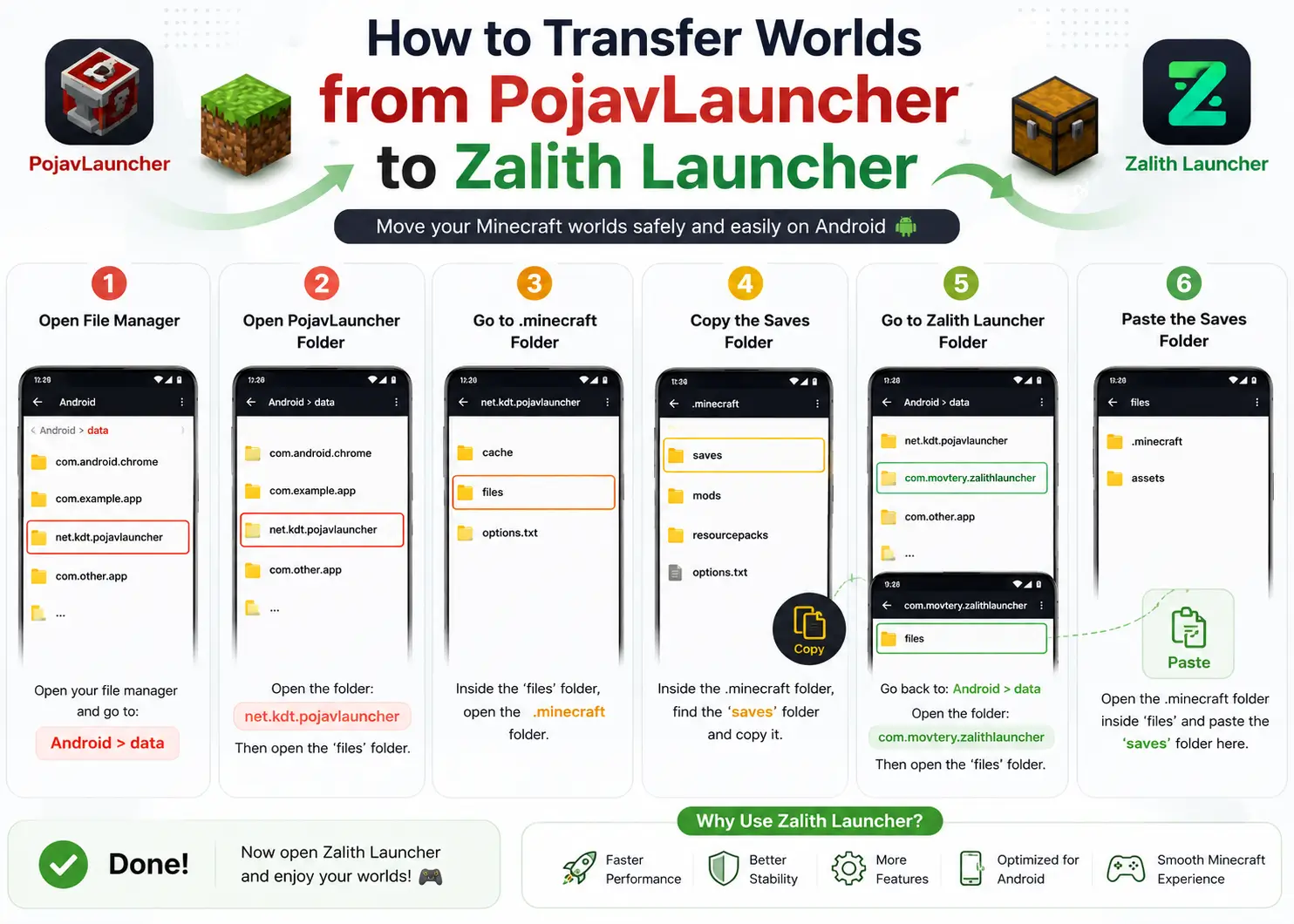
How to Transfer Worlds from PojavLauncher to Zalith Launcher
Switching from PojavLauncher to Zalith Launcher is a smart move — Zalith offers a cleaner UI, better file management, and improved mod support. The great news is that your saved Minecraft worlds are not lost. Because both launchers use the same .minecraft/saves folder structure, transferring worlds is straightforward once you know the correct file paths.
This complete guide covers every method — from using Zalith’s built-in file manager to manual folder copying with ZArchiver — so you never lose a single block of your hard-earned world.
📋 What You Need Before Starting
- Both PojavLauncher and Zalith Launcher installed on the same Android device
- A file manager app (ZArchiver, MiXplorer, or Files by Google recommended)
- At least 500MB free storage for copying world files
- A few minutes of time — no root access required
Why Players Switch from PojavLauncher to Zalith Launcher
PojavLauncher was the original pioneer that brought Minecraft Java Edition to Android. However, since its archival in September 2025, it no longer receives updates or bug fixes. Zalith Launcher was built directly on top of PojavLauncher’s codebase as a community-driven improvement — adding a redesigned interface, a built-in file manager, better mod support, and customizable game directories that make world management far easier.
Built-in File Manager
Zalith Launcher includes a native file browser so you can access and move your saves, mods, and resource packs without needing a separate app. No Android permission errors, no workarounds needed.
Active Development
PojavLauncher was archived in 2025 and receives no more updates. Zalith Launcher 2 is actively maintained and continues to add Minecraft version support, new mod loaders, and stability patches regularly.
Better Mod Support
Zalith Launcher 2 supports Forge, Fabric, Quilt, and NeoForge — all in one launcher. You can download mods, shaders, and resource packs directly from inside the app, saving setup time for every world.
Understanding the Save File Locations
Before moving any files, you need to know exactly where each launcher stores its worlds. Both launchers use a .minecraft/saves/ folder structure — only the root directory differs. The table below shows the key paths on Android.
| Launcher | Primary Save Path (External Storage) | Alternative Path (App Data) |
| PojavLauncher | /storage/emulated/0/games/PojavLauncher/.minecraft/saves/ | /storage/emulated/0/Android/data/net.kdt.pojavlaunch/files/.minecraft/saves/ |
| Zalith Launcher | /storage/emulated/0/games/ZalithLauncher/.minecraft/saves/ | /storage/emulated/0/Android/data/com.movtery.zalithlauncher/files/.minecraft/saves/ |
| Zalith Launcher 2 | /storage/emulated/0/games/ZalithLauncher2/.minecraft/saves/ | /storage/emulated/0/Android/data/com.movtery.zalithlauncher2/files/.minecraft/saves/ |
Important: The exact path may differ slightly depending on your Android version and how you set up the game directory in each launcher. Always open the launcher once first to let it create the folder structure before you try to paste files into it.
3 Methods to Transfer Your Worlds
Method 1: Built-in File Manager
Use Zalith Launcher’s own file browser. Best for beginners. No extra apps needed.
Method 2: ZArchiver App
Use a third-party file manager to copy the saves folder directly. Works even on Android 11+.
Method 3: PC via USB
Connect your phone to a PC, copy saves to desktop, then paste them into Zalith’s folder. Most reliable method.
Method 1 — Using Zalith Launcher’s Built-in File Manager
Locate Your PojavLauncher Worlds Folder
Open Zalith Launcher and tap the File Manager icon inside the app. Navigate to: /games/PojavLauncher/.minecraft/saves/. You should see one folder for each of your saved worlds.
Copy the World Folder
Long-press the world folder you want to transfer (for example, “My Survival World”). Select Copy from the menu that appears. Do not rename or modify anything at this point.
Navigate to Zalith’s Saves Folder
Still inside the Zalith file manager, navigate to: /games/ZalithLauncher/.minecraft/saves/. If this folder does not exist yet, launch Minecraft once inside Zalith first, then close it and come back.
Paste the World Folder
Tap Paste inside the saves folder. Wait for the copy to complete — larger worlds with many chunks can take 30–60 seconds. Do not close the app during this step.
Verify the World Appears in Zalith
Open Zalith Launcher, select your Minecraft version, and tap Play. Navigate to Singleplayer inside Minecraft — your transferred world should appear in the list ready to load.
Tip: If the world shows up but gives an error on load, check that you copied the entire world folder (not just the files inside it). The saves folder should contain a sub-folder with your world name, not loose .dat files.
Method 2 — Using ZArchiver or MiXplorer (Android 11+)
On newer Android versions (11 and above), accessing app data folders can be tricky. ZArchiver and MiXplorer are two file managers that handle Android’s restricted storage permissions well. This method is recommended if Zalith’s built-in file manager cannot reach the PojavLauncher data folder.
- Install ZArchiver from the Google Play Store (free).
- Open ZArchiver and tap the hamburger menu (three lines) in the top-left corner.
- Look for PojavLauncher in the app shortcuts list. Tap it to jump directly to its data folder.
- Navigate to .minecraft → saves. Enable Show hidden files in settings if the .minecraft folder is not visible.
- Long-press the world folder you want, then tap Copy.
- Navigate to the Zalith Launcher saves folder:
/games/ZalithLauncher/.minecraft/saves/ - Tap the Paste button (clipboard icon at the bottom).
- Launch Minecraft via Zalith Launcher and verify the world appears under Singleplayer.
Android 13+ Users: If ZArchiver cannot access /Android/data/net.kdt.pojavlaunch/, try using the app shortcut in ZArchiver’s left panel. Alternatively, use Method 3 (PC transfer) which bypasses Android storage restrictions entirely.
Method 3 — Transfer via PC and USB Cable (Most Reliable)
Connecting your Android phone to a PC via USB gives you full, unrestricted access to both launcher folders. This is the most reliable method and also creates an automatic backup of your worlds on your PC.
- Connect your Android device to your PC using a USB cable. When prompted on your phone, select File Transfer (MTP) mode.
- On your PC, open File Explorer (Windows) or Finder (Mac) and locate your phone under “This PC” or “Devices”.
- Navigate to:
Phone → Internal Storage → games → PojavLauncher → .minecraft → saves - Copy the world folder(s) you want to transfer to your PC desktop as a backup.
- Now navigate to:
Phone → Internal Storage → games → ZalithLauncher → .minecraft → saves - Paste the world folder(s) into Zalith’s saves directory.
- Safely disconnect your phone and open Zalith Launcher to verify the worlds appear.
Bonus: While your phone is connected, take this opportunity to back up ALL your world saves from both launchers to a folder on your PC. This protects your progress in case of phone issues or accidental deletion.
Transfer More Than Just Worlds — Mods, Shaders and Resource Packs
Worlds are just the beginning. If you had mods, shader packs, or resource packs installed in PojavLauncher, you can bring all of them to Zalith using the same copy-paste method. The folder structure is identical — only the root launcher directory changes.
| File Type | PojavLauncher Folder | Zalith Launcher Folder |
| Saved Worlds | .minecraft/saves/ | .minecraft/saves/ |
| Mods (Forge/Fabric) | .minecraft/mods/ | .minecraft/mods/ |
| Resource Packs | .minecraft/resourcepacks/ | .minecraft/resourcepacks/ |
| Shader Packs | .minecraft/shaderpacks/ | .minecraft/shaderpacks/ |
| Screenshots | .minecraft/screenshots/ | .minecraft/screenshots/ |
| Config Files | .minecraft/config/ | .minecraft/config/ |
Mods for Single Player
Shaders and Resource Packs
Troubleshooting Common Transfer Problems
What Works
Common Problems & Fixes
FAQs
Common questions about transferring worlds between launchers.
Conclusion
Transferring worlds from PojavLauncher to Zalith Launcher is a simple process that requires no special tools, no root access, and no technical expertise. Since both launchers share the same underlying Minecraft Java Edition file structure, your saved worlds, mods, shaders, and resource packs move across perfectly.
The best method for most users is Zalith Launcher’s built-in file manager — it’s fast, requires no extra apps, and eliminates Android permission headaches. For Android 13+ users or those experiencing folder access issues, the PC/USB method is the most reliable fallback. Once your worlds are safely in Zalith, you gain access to better mod support, active development updates, and a significantly improved gameplay experience on Android.
Also Read: How to Install Shaders in Zalith Launcher on Android (2026)