Zalith Launcher Not Working — Complete 10+ Fix Guide (2026 Ultimate Solution)
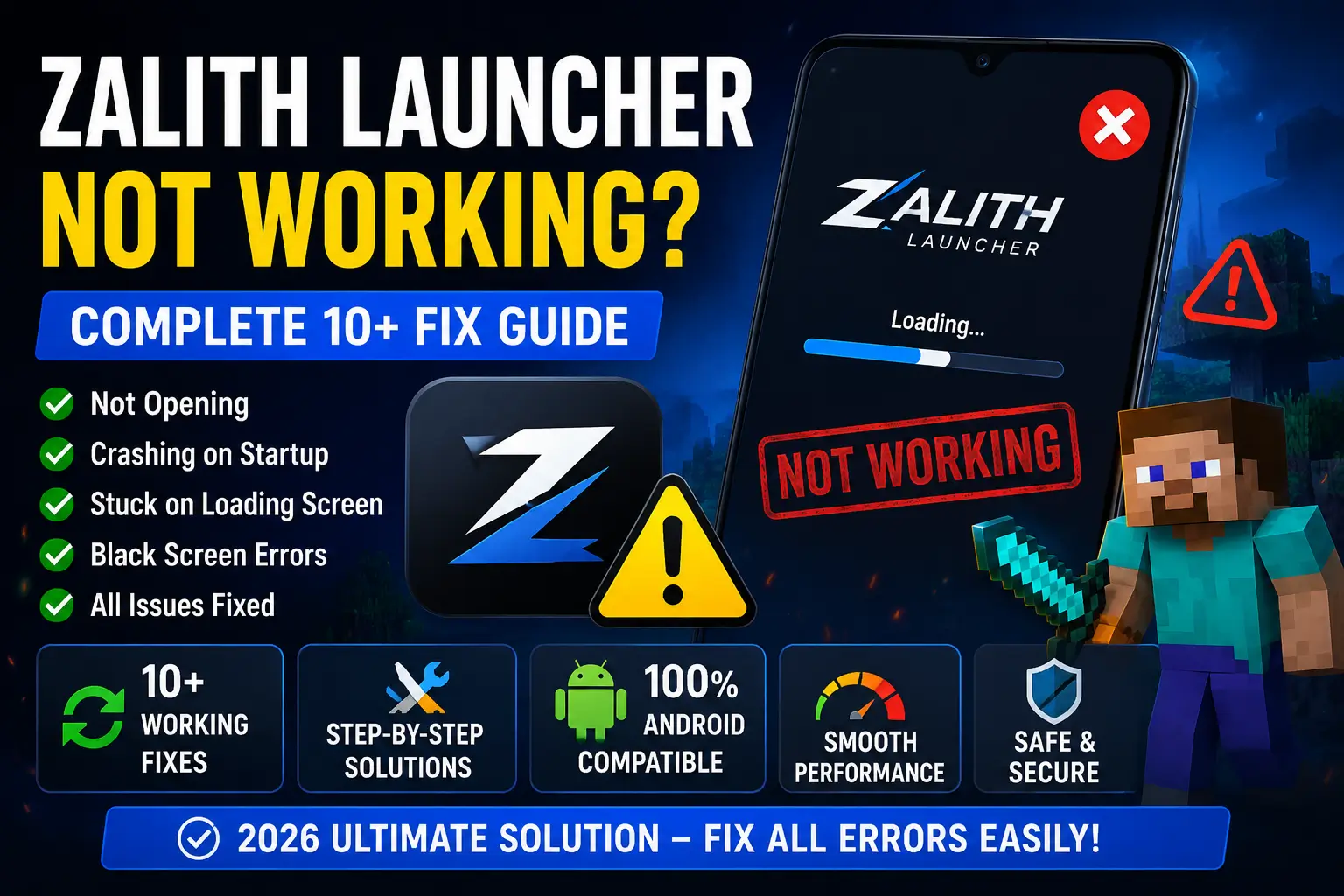
If your Zalith Launcher is not opening, crashing on startup, stuck on loading screen, or showing black screen errors, this ultimate guide will help you fix every issue step-by-step. These solutions are tested, beginner-friendly and work on most Android devices without any technical skills.
Zalith Launcher is a powerful Minecraft Java Edition launcher designed for Android users who want PC-like Minecraft experience on mobile devices. It supports mods, shaders, custom instances, and different Minecraft versions. However, many users face issues like crashes, black screen, freezing, login errors, and infinite loading.
These problems are usually caused by outdated versions, low RAM, corrupted cache, incompatible mods, or wrong settings. The good news is that every problem has a working solution — and this guide covers them all in detail.
All Versions Compatible
10+ Working Solutions
Crash / Login / Black Screen
🔍 Why Zalith Launcher Stops Working?
Zalith Launcher may stop working due to multiple technical and non-technical reasons. Below are the most common causes:
- Outdated launcher version with bugs
- Low RAM or insufficient device resources
- Corrupted cache or temporary files
- Incompatible Minecraft version selection
- Broken or unsupported mods/shaders
- Weak or unstable internet connection
- Incorrect launcher configuration settings
These issues are common in Android gaming environments, especially when running PC-level Minecraft.
Read More:
Zalith Launcher for Multiplayer — How to Join Servers & Play with Friends
📊 Common Issues Overview
🔥 12 Proven Fixes for Zalith Launcher Not Working
Always install the latest version of Zalith Launcher to remove bugs and compatibility issues.
Restarting clears RAM and fixes background system glitches instantly.
Allocate at least 2GB–4GB RAM for smooth gameplay performance.
Remove corrupted temporary files from Android app settings.
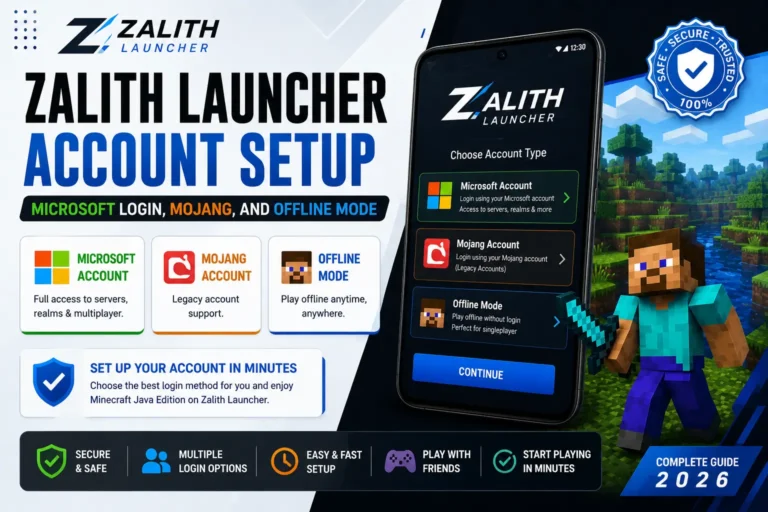
Sign out and log back into Minecraft account to fix authentication issues.
Ensure strong WiFi or mobile data for proper login and loading.
Delete incompatible mods causing crashes or black screen errors.
Corrupted files can break the launcher — reinstall clean instance.
Keep at least 3–5GB free space for smooth performance.
If nothing works, reinstall Zalith Launcher completely.
Switch between 1.20 or 1.21 for better compatibility.
Fabric is more stable for modern Minecraft versions on Android.
⚡ Pro Performance Tips
- Always close background apps before launching
- Use low graphics settings for better FPS
- Avoid heavy mods on low-end devices
- Keep launcher updated regularly
- Do not overload Minecraft instances
- Use lightweight shader packs only
🧠 Advanced Troubleshooting (Expert Fixes)
If Zalith Launcher still does not work after all basic fixes, try these advanced solutions:
- Reset launcher settings completely
- Reinstall Android WebView updates
- Check GPU compatibility
- Switch device performance mode ON
- Test without any mods installed
These methods solve rare but serious system-level issues.
❓ Frequently Asked Questions
Q1: Why does Zalith Launcher crash?
Mostly due to low RAM or corrupted cache.
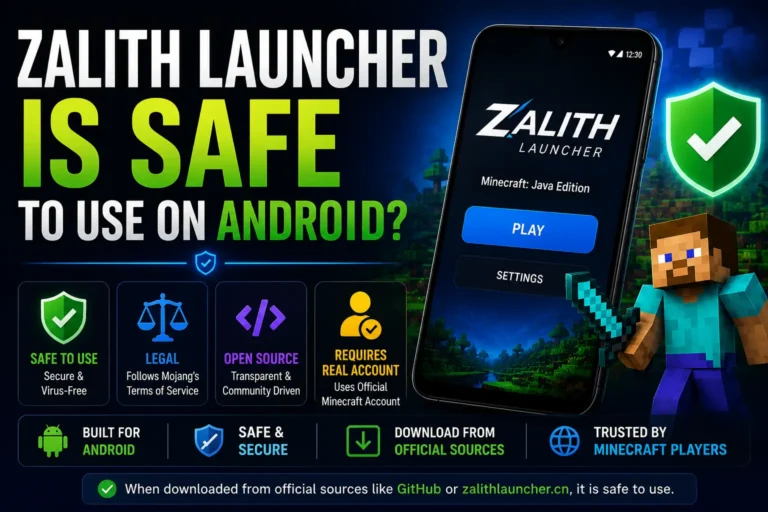
Q2: Is Zalith Launcher safe?
Yes, if downloaded from trusted sources.
Q3: Can I use shaders?
Yes, using Iris or OptiFine depending on version.
Q4: Why black screen happens?
Usually caused by incompatible mods or GPU issues.
Final Verdict
Zalith Launcher issues are very common but completely fixable. Most problems come from outdated versions, RAM limitations, or mod conflicts. By following these 12 powerful fixes, you can easily restore smooth Minecraft gameplay on Android without crashes or errors.