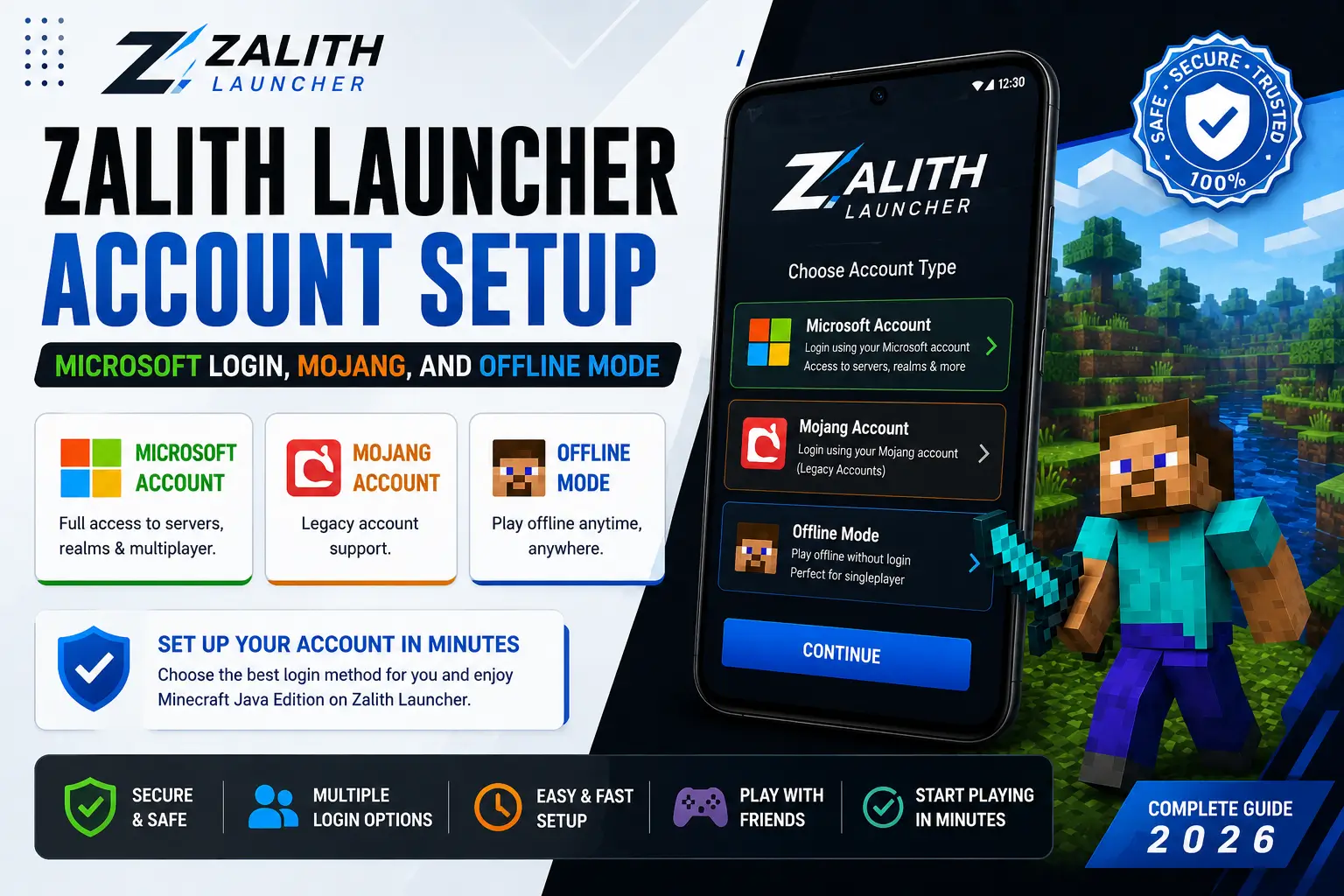
Zalith Launcher Account Setup — Microsoft Login, Mojang, and Offline Mode
Zalith Launcher Account Setup — Microsoft Login, Mojang, and Offline Mode
Setting up your account is the very first step before you can play Minecraft Java Edition on Zalith Launcher. Whether you have a paid Microsoft account, an old Mojang account, or just want to play offline with friends, this guide covers every login method in full detail.
Zalith Launcher supports three account types — Microsoft, Mojang (legacy), and Offline. Each serves a different purpose and offers different levels of server access. This complete guide walks you through every option so you can log in correctly the first time and start playing without issues.
Account Types Supported by Zalith Launcher
Zalith Launcher supports three distinct account types. Each one gives you a different level of access to Minecraft servers and features. Understanding which account type you need before setting up will save you time and avoid login errors.
Microsoft Account
The recommended and most feature-complete account type. Required for joining premium servers like Hypixel. Uses the official Microsoft OAuth authentication system so your password is never stored by the launcher. Requires a purchased copy of Minecraft Java Edition linked to your Microsoft account.

Mojang Account (Legacy)
Older accounts created before Mojang migrated all users to Microsoft in 2023. Most Mojang accounts have already been migrated automatically. If your Mojang account has not been migrated, Zalith Launcher still supports it as a legacy login option. Mojang accounts give the same server access as Microsoft accounts.

Offline / Local Account
A free local account that requires no purchase and no internet connection to set up. Simply enter any username and the launcher generates a random UUID locally. Perfect for single-player, LAN play with friends, and private servers that allow offline clients. Cannot access premium servers like Hypixel.
Account Type Comparison — Which One Do You Need?
Before setting up your account, check the table below to understand which account type is right for your situation. This will help you avoid login errors and make sure you get access to all the features you want.
| Feature / Access | Microsoft Account | Mojang (Legacy) | Offline Account |
| Requires Purchase | Yes | Yes (already purchased) | No |
| Premium Servers (Hypixel etc.) | ✅ Full Access | ✅ Full Access | ❌ Not Supported |
| LAN Multiplayer | ✅ Yes | ✅ Yes | ✅ Yes |
| Single Player | ✅ Yes | ✅ Yes | ✅ Yes |
| Official Skin System | ✅ Yes | ✅ Yes | ❌ Local Only |
| Account Security | Microsoft 2FA supported | Legacy security | No password needed |
| Internet Required | Yes (for login) | Yes (for login) | No |
| Username Changes | 30-day cooldown | 30-day cooldown | Change anytime |
Three Login Methods at a Glance
Zalith Launcher gives you complete flexibility in how you log in. Pick the method that matches your situation below.
Microsoft Account
- Full access to all premium servers
- Secure via Microsoft OAuth — no password stored
- Requires purchased Java Edition
- Supports 2-Factor Authentication
- Official skin and cape system
Mojang Account
- For pre-2023 accounts not yet migrated
- Same server access as Microsoft
- Check migration status at account.mojang.com
- Most accounts auto-migrated already
Offline Mode
- No purchase or internet required
- Works for single-player and LAN
- Enter any username — UUID generated locally
- Change username anytime, no cooldown
Tip: If you are unsure which account type to use, start with Offline Mode to test the launcher, then upgrade to a Microsoft account login when you are ready to join public servers.
How to Set Up a Microsoft Account Login on Zalith Launcher
Microsoft Account login is the official and most recommended way to play. Follow these steps carefully to complete the login process on your Android device.
Before You Start — Checklist
Step-by-Step Microsoft Login
- Open Zalith Launcher and tap the Account icon from the main menu to open Account Management.
- Tap Add Account and select Microsoft Account from the options.
- The launcher will generate a device code and automatically copy it to your clipboard. A browser window will open to the Microsoft verification page.
- Paste or type the device code into the input box on the Microsoft verification page and press Next.
- Sign in with your Microsoft email and password on the webpage that appears.
- Tap Accept to grant the launcher permission to access your Minecraft account.
- Wait a few seconds. The launcher will automatically verify your Minecraft ownership and load your game profile.
- Your Microsoft account will now appear in the Account Management page. You are ready to play.
How to Set Up Offline Mode on Zalith Launcher
Offline Mode is the quickest way to start playing. You do not need a paid Minecraft account or even an internet connection. Simply pick a username and the launcher creates a local account with a randomly generated UUID. This account is perfect for testing the launcher, playing solo, or joining LAN worlds with friends on the same Wi-Fi network.
Setting Up an Offline Account
What You Can and Cannot Do with Offline Mode
What You Can Do
Limitations
Also Read: Graphics and Renderer Plugins for Minecraft Java Edition: Complete Guide
Account Security — Keeping Your Microsoft Account Safe on Zalith Launcher
Zalith Launcher uses the official Microsoft OAuth authentication system. Your email and password are never entered inside the launcher itself — authentication always happens on Microsoft’s own secure webpage. The launcher only receives an access token, never your password. Here are the best practices to keep your account safe.
Common Login Errors and How to Fix Them
If you run into problems during account setup, these are the most common errors and their solutions.
Invalid Session / Not Authenticated
Your login token has expired. Go back to the Zalith Launcher home screen, open Account Management, remove the account, and log in again. Make sure your device clock is set to the correct time as token validation is time-sensitive.
Device Code Not Working or Expired
Microsoft device codes expire after a few minutes. If the code does not work, go back to the Account Management page, tap Add Account again and start the process fresh. Enter the new code quickly before it expires.
Account Does Not Own Minecraft
This appears when the Microsoft account you logged in with does not have Minecraft Java Edition purchased. Visit xbox.com/games/minecraft to purchase the game, then try logging in again after a few minutes.
No Game Profile Found
You have purchased Minecraft but have not created a game profile yet. Visit minecraft.net, go to My Profile, and create your in-game username. After saving the profile, return to Zalith Launcher and log in again.
Login Failed — Network Error
Check your internet connection and make sure you are not connected to a VPN that may block Microsoft authentication servers. Switch to a different Wi-Fi network or turn off VPN and try again.
FAQs
Common account setup questions for Zalith Launcher answered simply.
Conclusion
Zalith Launcher makes account setup straightforward for all types of players. Whether you choose a full Microsoft account for premium server access, use a legacy Mojang account, or simply start with Offline Mode to try out the launcher for free, the process is quick and the Account Management system keeps everything organized in one place.
For the best and most complete experience, a Microsoft account with a purchased copy of Minecraft Java Edition is always recommended. It gives you full access to premium servers, the official skin system, and two-factor authentication to keep your account secure. Zalith Launcher account setup takes just a few minutes and you will be playing Minecraft Java Edition on Android with full multiplayer access in no time.