
Graphics and Renderer Plugins for Minecraft Java Edition: Complete Guide
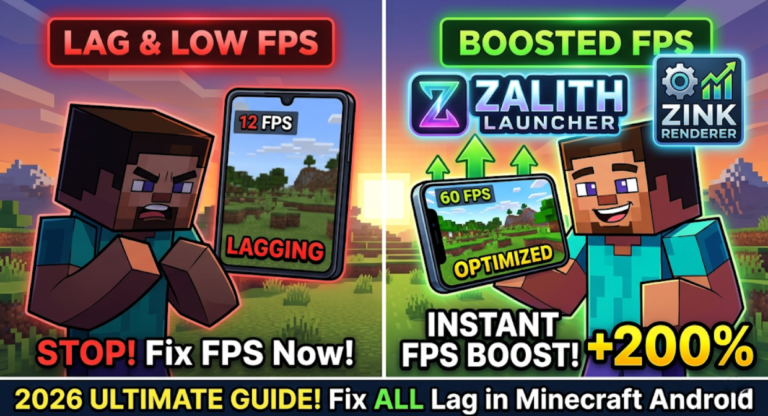
Minecraft Java Edition uses graphics and renderer plugins to significantly improve the visual experience of the game. These plugins enhance important elements like lighting, shadows, textures, reflections and shader effects, making the world look more realistic and detailed. Along with visual upgrades, they also play an important role in optimizing rendering performance, which helps reduce lag and improve FPS on low end, mid range and even high end devices. With the right setup, players can enjoy a smoother and more immersive gameplay experience without sacrificing too much performance.
Proper selection and configuration of renderer plugins is very important for achieving the best results. Different plugins offer different levels of quality and performance, so choosing the right combination depends on your device strength and personal preference. When optimized correctly, these plugins create a perfect balance between high quality graphics and stable performance. This ensures that Minecraft runs smoothly while still looking visually impressive, allowing players to enjoy both beauty and performance at the same time.
Popular Graphics and Renderer Plugins
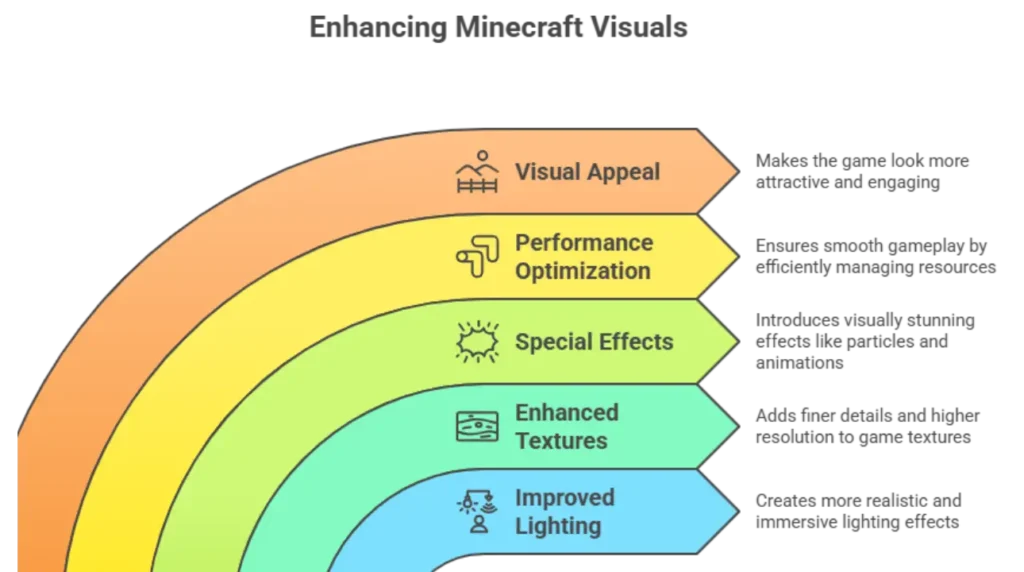
Graphics and renderer plugins enhance Minecraft’s visuals by improving lighting, textures, and effects. They optimize performance while making the game look more realistic or visually appealing. Using these plugins ensures smoother gameplay with better graphics quality.
OptiFine
OptiFine is the most widely used Graphics and Renderer Plugins. It improves FPS, lighting, and rendering while allowing support for shaders. OptiFine also adds additional video settings that are not available in vanilla Minecraft, giving players full control over their graphics.
- Advantages:
- Improves FPS and performance
- Enables shaders
- Adds advanced video options
- When to Use:
Use OptiFine to boost performance, especially when using heavy mods or high-resolution resource packs.
MobileGlues
MobileGlues is a Graphics and Renderer Plugins that optimizes graphics performance in Minecraft, especially for mobile and low-end devices. It works in the background to manage rendering efficiently.
- Advantages:
- Reduces lag and stuttering
- Optimized for various devices
- Works well with shaders and other graphics mods
- When to Use:
Ideal for players using heavy graphics mods or shaders who want smooth performance on limited hardware.
Shader Packs
Shader Packs change the way Minecraft handles light, shadow and water reflections. They can make the game look realistic or stylized depending on the pack used.
- Advantages:
- Enhances lighting, shadows, and reflections
- Adds realism or artistic style
- Compatible with OptiFine and MobileGlues
- When to Use:
Use Shader Packs when you want advanced visuals and a more immersive experience.
Read More: Compatibility Helpers and Tools for Minecraft Java Edition: Complete Guide
Resource Packs
Resource Packs replace Minecraft textures, sounds and models to improve aesthetics or add a custom theme. They can be lightweight or high-resolution.
- Advantages:
- Changes textures, blocks, and items
- Enhances game aesthetics
- Compatible with most mods and graphics plugins
- When to Use:
Use Resource Packs to create a unique look or to complement shaders for a more immersive game world.
Graphics and Renderer Plugins Table
Graphics and Renderer Plugins Table lists essential tools that improve Minecraft Java Edition’s visual performance. These Graphics and Renderer Plugins enhance rendering speed, optimize graphics, and reduce lag while maintaining high-quality visuals. They help manage system resources, improve FPS and ensure smooth gameplay even with heavy mods or shaders. Using these plugins provides a stable and visually enhanced Minecraft experience.
| Plugin | Mod / Loader Support | Performance / Weight | Notes |
| OptiFine | Works with most mods and loaders | Moderate, improves FPS | Enables shaders, advanced video options |
| MobileGlues | Compatible with most graphics mods | Lightweight, optimized | Reduces lag and stuttering, works with shaders |
| Shader Packs | Requires OptiFine or MobileGlues | Heavy, may reduce FPS | Changes lighting, shadows, water reflections |
| Resource Packs | Works with most mods and shaders | Lightweight to moderate | Changes textures, sounds, models; aesthetic improvements |
How to Install Graphics Plugins in Zalith Launcher
Installing Graphics Plugins in Zalith Launcher requires downloading the correct version that matches your Minecraft setup. Place the files in the appropriate mods shaderpacks or resourcepacks folder and launch the game to activate them. Always test FPS and visual settings after installation.
- Download the Plugin: Make sure the plugin is compatible with your Minecraft version and other installed mods.
- Open Zalith Launcher: Select the correct Minecraft version to match the plugin.
- Locate the Mods or Resource Folder: OptiFine, MobileGlues and Shader Packs go into the mods or shaderpacks folder. Resource Packs go into the resourcepacks folder.
- Copy the Plugin: Paste the plugin or pack into the correct folder.
- Launch Minecraft: Use the correct loader and check that the plugin is active.
- Configure Settings: Open the video options to adjust shader, FPS, and texture settings for optimal performance.
- Test Gameplay: Ensure the game runs smoothly and the plugin works without crashing.
Tips:
Common Issues & Solutions
Many Graphics and Renderer Plugins related problems such as low FPS missing plugins or crashes are caused by improper setup. Verifying shader versions, adjusting video settings and removing conflicting mods ensures smoother gameplay and better stability.
FAQs
This guide makes troubleshooting easier for everyone.
Conclusion
Graphics and Renderer Plugins are essential for players who want a visually enhanced Minecraft Java Edition experience. OptiFine improves FPS and rendering capabilities. MobileGlues optimizes background rendering for smoother gameplay. Shader Packs provide realistic lighting, shadows, and reflections, while Resource Packs allow complete customization of textures and visuals.
Installing these Graphics and Renderer Plugins correctly in Zalith Launcher, updating them regularly, and combining compatible packs ensures smooth gameplay and a stunning visual experience. Players can enjoy modded Minecraft with immersive graphics, realistic lighting, and optimized performance without crashes or conflicts.